

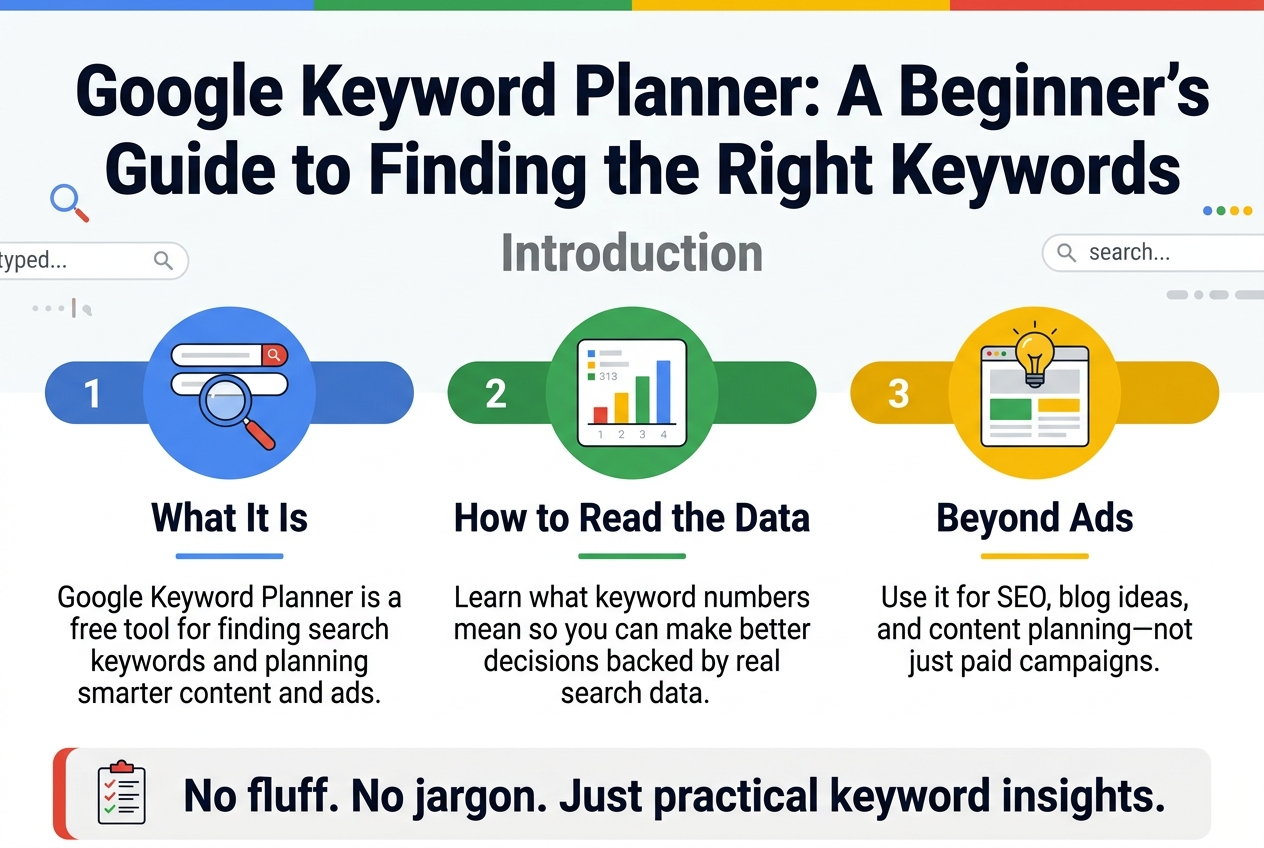
Google Keyword Planner: A Beginner’s Guide to Finding the Right Keywords
If you’ve ever stared at a blank screen wondering what words your customers actually type into Google, you’re not alone. The Google Keyword Planner tool was built exactly for that — and it’s free.
This guide is for small business owners, bloggers, and marketers who want to stop guessing and start making smarter content and ad decisions backed by real search data.
Here’s what we’ll walk through:
- What Google Keyword Planner actually is and why it’s worth your time
- How to read the keyword data so the numbers make sense
- Creative ways to use it beyond just running ads — including SEO and content planning
No fluff, no complicated jargon. Just a straight-up breakdown of how to get the most out of one of Google’s most underrated free tools.
What Is Google Keyword Planner and Why It Matters
The Core Purpose of Google Keyword Planner
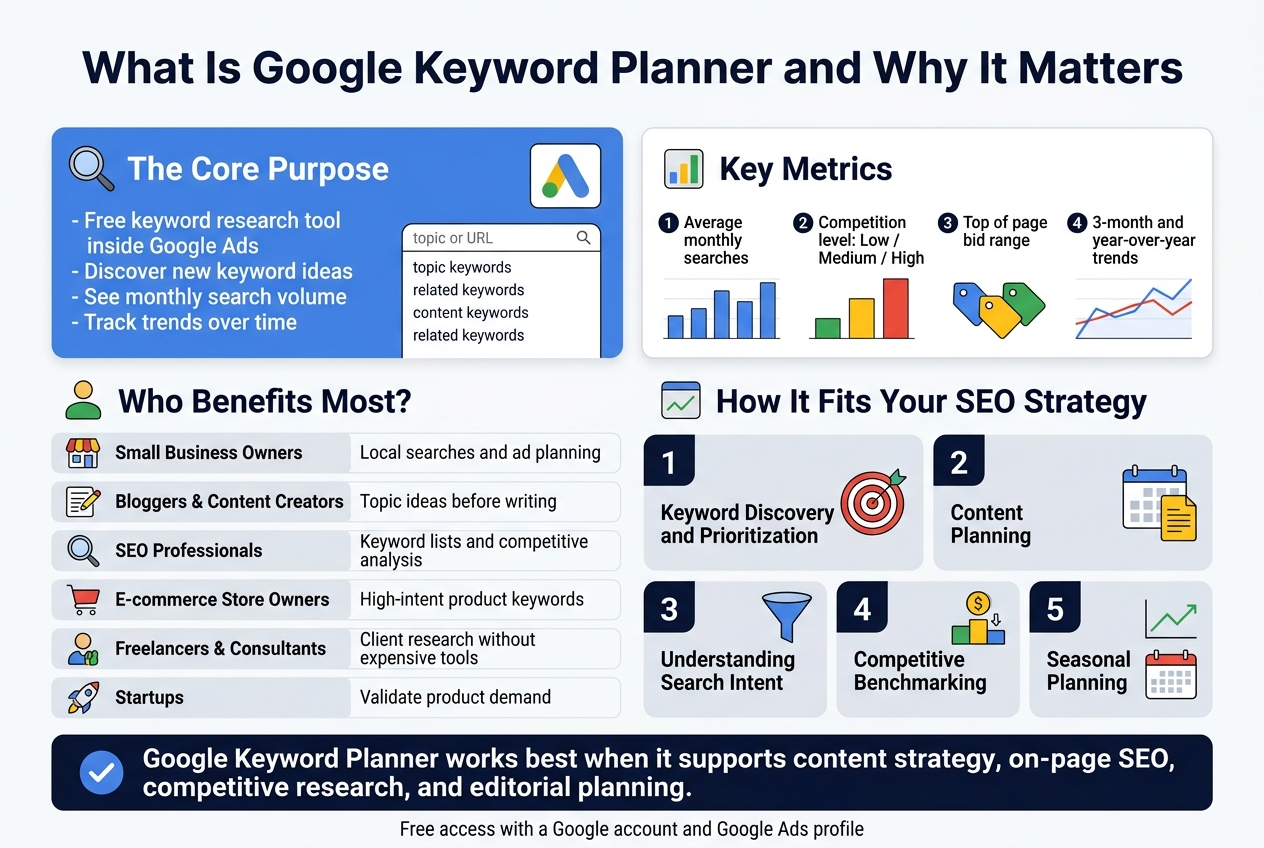
Google Keyword Planner is a free research tool built right inside Google Ads. At its heart, it does two things really well: it helps you discover new keyword ideas, and it gives you real data on how often people search for those keywords every month.
Think of it as a window into Google’s search data. When you type a topic or a URL into the tool, it pulls back a list of related keywords along with metrics like:
- Average monthly searches – how many times a keyword gets searched per month
- Competition level – whether lots of advertisers are bidding on it (Low, Medium, or High)
- Top of page bid range – what advertisers are paying to show up at the top of search results for that keyword
- Three-month and year-over-year trends – so you can spot seasonal patterns before they sneak up on you
Originally built for Google Ads campaigns, the tool has become a go-to resource for content creators, SEO professionals, and business owners who want to make smarter decisions about the words they target online. Instead of guessing what your audience is searching for, you get actual numbers backed by Google’s own search engine data — and that kind of insight changes how you plan content, structure websites, and run paid campaigns.
Who Can Benefit Most from Using This Tool
Google Keyword Planner isn’t just for big marketing agencies with fat budgets. It’s genuinely useful for a wide range of people, from a solo blogger working out of a home office to a growth team at a mid-sized e-commerce brand.
Here’s a breakdown of who gets the most value from it:
| User Type | How They Benefit |
|---|---|
| Small Business Owners | Find out what local customers are searching for and plan budget-friendly ad campaigns |
| Bloggers & Content Creators | Identify topics people are actively searching for before writing a single word |
| SEO Professionals | Build solid keyword lists, find long-tail opportunities, and analyze competitive landscapes |
| E-commerce Store Owners | Spot high-intent buying keywords that drive product page traffic |
| Freelancers & Consultants | Research keywords for client campaigns without needing expensive third-party tools |
| Startups | Validate product ideas by seeing whether people are actually searching for what they plan to offer |
One thing that makes Google Keyword Planner stand out is accessibility. You don’t need to spend a dollar on ads to start using it. As long as you have a Google account and can set up a Google Ads profile (even without running a live campaign), you get access to the tool completely free. That makes it one of the most cost-effective research options available, especially for people who are just getting started with digital marketing.
How It Fits Into Your Overall SEO Strategy
A lot of people treat Google Keyword Planner as strictly a paid advertising tool, but that’s leaving serious value on the table. The keyword data it provides is just as relevant for organic search strategy as it is for paid campaigns.
Here’s how it plugs into a broader SEO approach:
Keyword Discovery and Prioritization
Before you can rank for anything, you need to know what you’re targeting. Google Keyword Planner helps you build a master keyword list sorted by search volume and competition. You can quickly spot which keywords are worth fighting for and which ones might be too competitive for a newer site to rank on the first page.
Content Planning
When you see that a keyword like “best running shoes for flat feet” gets 10,000 monthly searches, that’s a signal to create content around it. You can map high-volume keywords to specific blog posts, landing pages, or product descriptions — so your content calendar is driven by actual demand rather than guesswork.
Understanding Search Intent
The tool groups keyword suggestions in ways that reveal what users are actually looking for. Are they researching? Comparing options? Ready to buy? Reading between the lines of keyword data helps you match your content to the right stage of the buyer’s journey.
Competitive Benchmarking
The bid range data gives you an indirect measure of commercial value. If advertisers are paying $8–$15 per click for a keyword, that’s a strong sign the traffic converts well. For SEO purposes, ranking organically for those same keywords means capturing that value without the ongoing ad spend.
Seasonal Planning
The trend data inside Google Keyword Planner lets you plan ahead. If you can see that searches for “holiday gift guides” spike every October through December, you can start publishing content in September rather than scrambling when the season hits.
In short, Google Keyword Planner works best when it’s not siloed as just an ads tool. Plug it into your content strategy, your on-page SEO planning, your competitive research, and your editorial calendar — and it becomes one of the most versatile free tools you have access to.
How to Access and Set Up Google Keyword Planner
Creating or Logging Into Your Google Ads Account
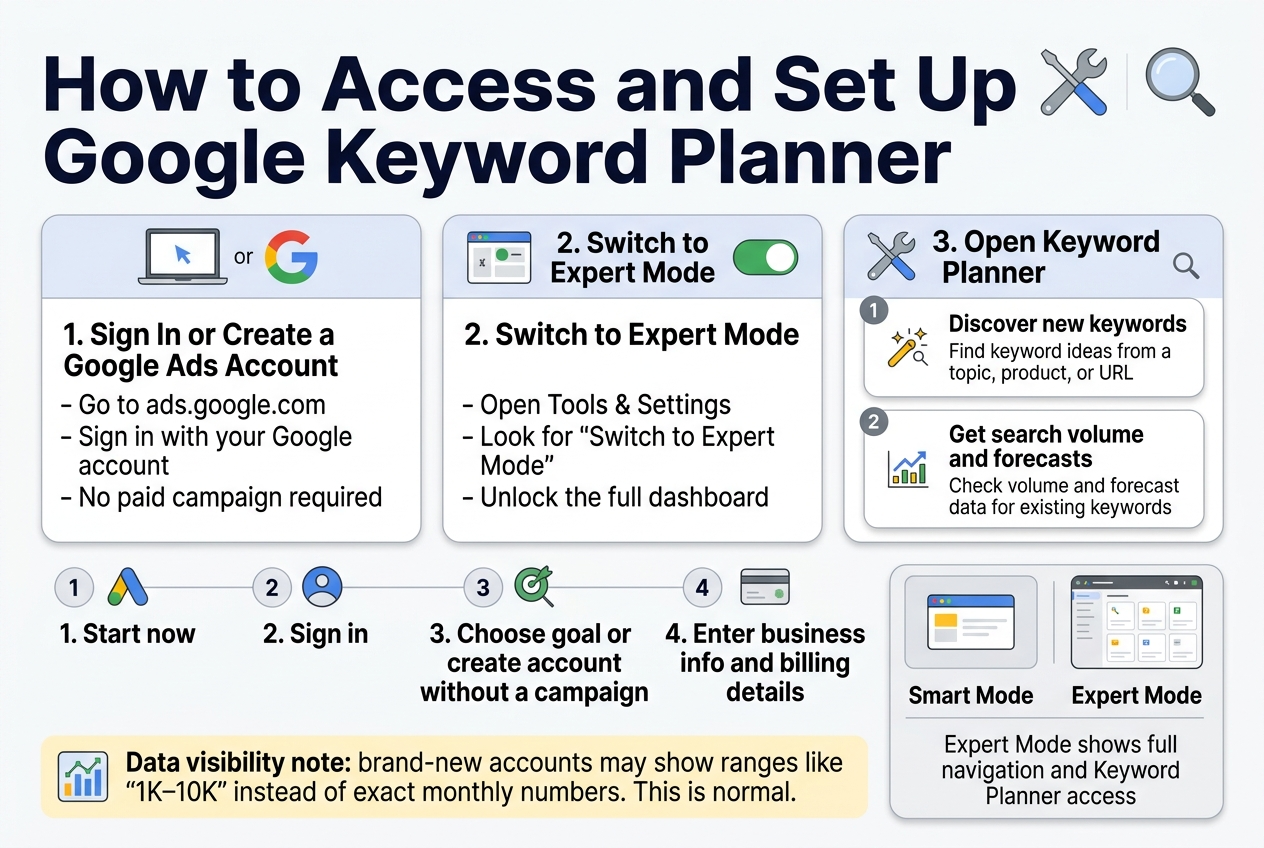
Google Keyword Planner lives inside Google Ads, so you’ll need a Google Ads account to get to it. The good news? You don’t have to run any paid campaigns to use the tool. Google just requires you to have an account set up before granting access.
If You Already Have a Google Ads Account
Head over to ads.google.com and sign in with your Google credentials. Once you’re inside the dashboard, look for the wrench icon (Tools & Settings) in the top navigation bar. Click on it, and under the “Planning” section, you’ll see Keyword Planner sitting right there. One click and you’re in.
If You’re Starting From Scratch
Setting up a new Google Ads account takes about five to ten minutes. Here’s how to do it without getting tripped up:
- Go to ads.google.com and click “Start now.”
- Sign in with your Google account — a Gmail address works perfectly.
- Choose your main advertising goal — Google will ask what you want to achieve (sales, leads, website traffic, etc.). Pick one that makes sense or select “Create an account without a campaign” if you just want tool access.
- Set your business information — enter your business name, website URL, and time zone.
- Skip the campaign setup — this is the key step most people miss. Look for the small “Switch to Expert Mode” link or the option that says “Explore your account” without creating a campaign. This lets you access the full dashboard without spending any money.
- Confirm your billing details — Google asks for payment information during setup, but you won’t be charged unless you actually launch a campaign. Think of it as a security deposit that never gets touched.
Switching to Expert Mode (Important Step)
When you first create an account, Google nudges you toward “Smart Mode,” which is a simplified version of the interface. The problem is that Smart Mode doesn’t always show Keyword Planner clearly or give you full access to all its features.
Switching to Expert Mode unlocks the complete dashboard experience. Here’s how to do it:
- Look at the bottom of your Google Ads dashboard for a link that says “Switch to Expert Mode.”
- Click it, confirm the switch, and you’ll immediately see the full navigation menu including Tools & Settings.
What You’ll See After Logging In
Once you’re inside Keyword Planner, you’re presented with two main options:
| Option | What It Does |
|---|---|
| Discover new keywords | Generates keyword ideas based on a topic, product, or URL you provide |
| Get search volume and forecasts | Shows you data for a list of keywords you already have in mind |
Both options are powerful depending on where you are in your research process. If you’re starting fresh, “Discover new keywords” is the better starting point. If you’ve already brainstormed a list and want to validate it, “Get search volume and forecasts” is what you want.
A Quick Note on Data Visibility
One thing to be aware of: Google shows more detailed search volume data to accounts that are actively running ads. If your account is brand new and has no active campaigns, you might see volume ranges like “1K–10K” instead of exact monthly numbers. This is completely normal and still gives you plenty of useful directional data for making smart keyword decisions. As your account becomes more established or once you run even a small campaign, the data tends to become more precise.
How to Find the Best Keywords for Your Business
Analyzing Search Volume to Prioritize High-Traffic Terms
Search volume is one of the first numbers your eyes jump to inside Google Keyword Planner, and for good reason. It tells you roughly how many times people search for a specific term each month. But reading that number correctly is what separates smart keyword decisions from wasted effort.
What Search Volume Numbers Actually Mean
Google Keyword Planner displays search volume as a range when you are not running an active ad campaign. You might see something like 1K–10K instead of a precise figure. Once you launch even a small campaign, those ranges sharpen into more specific monthly averages. Keep that in mind when comparing keywords side by side.
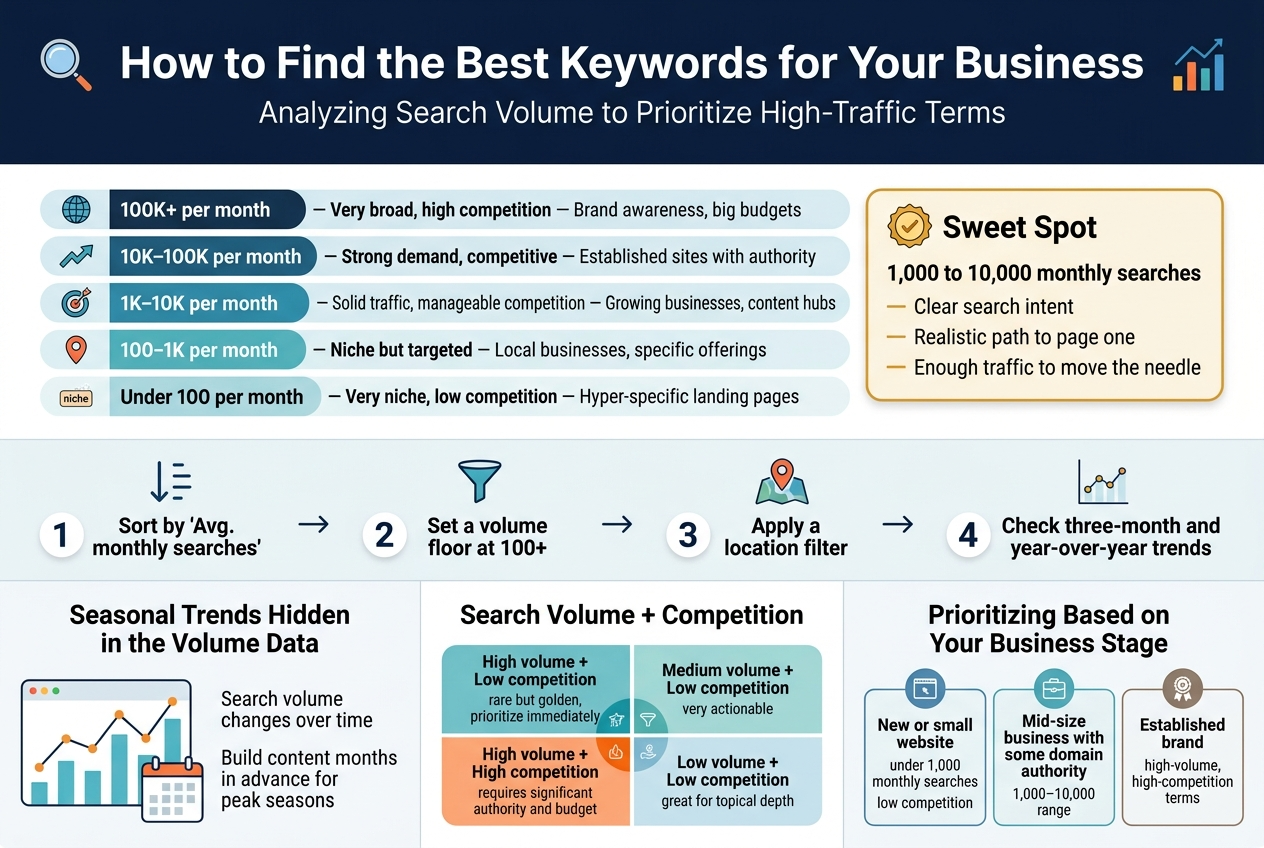
Here’s a quick way to think about volume tiers:
| Volume Range | What It Signals | Best For |
|---|---|---|
| 100K+ per month | Very broad, high competition | Brand awareness, big budgets |
| 10K–100K per month | Strong demand, competitive | Established sites with authority |
| 1K–10K per month | Solid traffic, manageable competition | Growing businesses, content hubs |
| 100–1K per month | Niche but targeted | Local businesses, specific offerings |
| Under 100 per month | Very niche, low competition | Hyper-specific landing pages |
Balancing High Volume with Realistic Expectations
Chasing the highest search volume keyword sounds tempting, but a term like “shoes” with millions of monthly searches is nearly impossible to rank for organically unless you are a major retailer. The smarter move is to look for keywords that sit in a sweet spot — enough monthly searches to drive meaningful traffic, but not so competitive that you are fighting giants.
A good starting point is targeting keywords in the 1,000 to 10,000 monthly searches range. These terms typically have:
- Clear search intent behind them
- A realistic path to ranking on page one
- Enough traffic to move the needle on your business goals
How to Sort and Filter by Search Volume in the Tool
Inside Keyword Planner, after you run a search using Discover new keywords, you will land on a list of keyword ideas. Here is how to work through that list efficiently:
- Click the “Avg. monthly searches” column header to sort from highest to lowest
- Set a volume floor using the filter option — removing anything below 100 searches eliminates clutter
- Apply a location filter so you see volume specific to your target market, not global numbers
- Check the three-month and year-over-year trends displayed alongside each keyword to spot growing or declining terms
Seasonal Trends Hidden in the Volume Data
Search volume is not static. A keyword like “tax preparation help” spikes massively between January and April, then drops off a cliff. Google Keyword Planner shows you a small bar graph for each keyword that reflects this seasonality. Pay attention to it.
If your business has seasonal peaks, prioritize keywords that align with those windows. Building content around a term that peaks in December when your buying season is summer means publishing that content months in advance so it has time to gain traction.
Combining Volume with Competition Score
Search volume alone does not tell the whole story. Always look at it alongside the competition column, which shows Low, Medium, or High. This reflects how many advertisers are bidding on that term, and it doubles as a proxy for how competitive organic ranking might be.
The winning combination to look for:
- High volume + Low competition → rare but golden, prioritize immediately
- Medium volume + Low competition → very actionable, great for content strategies
- High volume + High competition → requires significant authority and budget
- Low volume + Low competition → great for building topical depth on your site
Prioritizing Based on Your Business Stage
Where your business currently sits should shape which volume tier you target:
- New or small website: Focus on keywords under 1,000 monthly searches with low competition. Winning on smaller terms builds authority faster.
- Mid-size business with some domain authority: Target the 1,000–10,000 range and mix in some high-competition terms for paid campaigns.
- Established brand: You can realistically go after high-volume, high-competition terms both organically and through ads.
Reading search volume as a single standalone metric leads to poor keyword choices. When you pair it with competition data, seasonal trends, and your own business stage, you start making keyword decisions that actually produce results.
Smart Ways to Use Google Keyword Planner Beyond Paid Ads
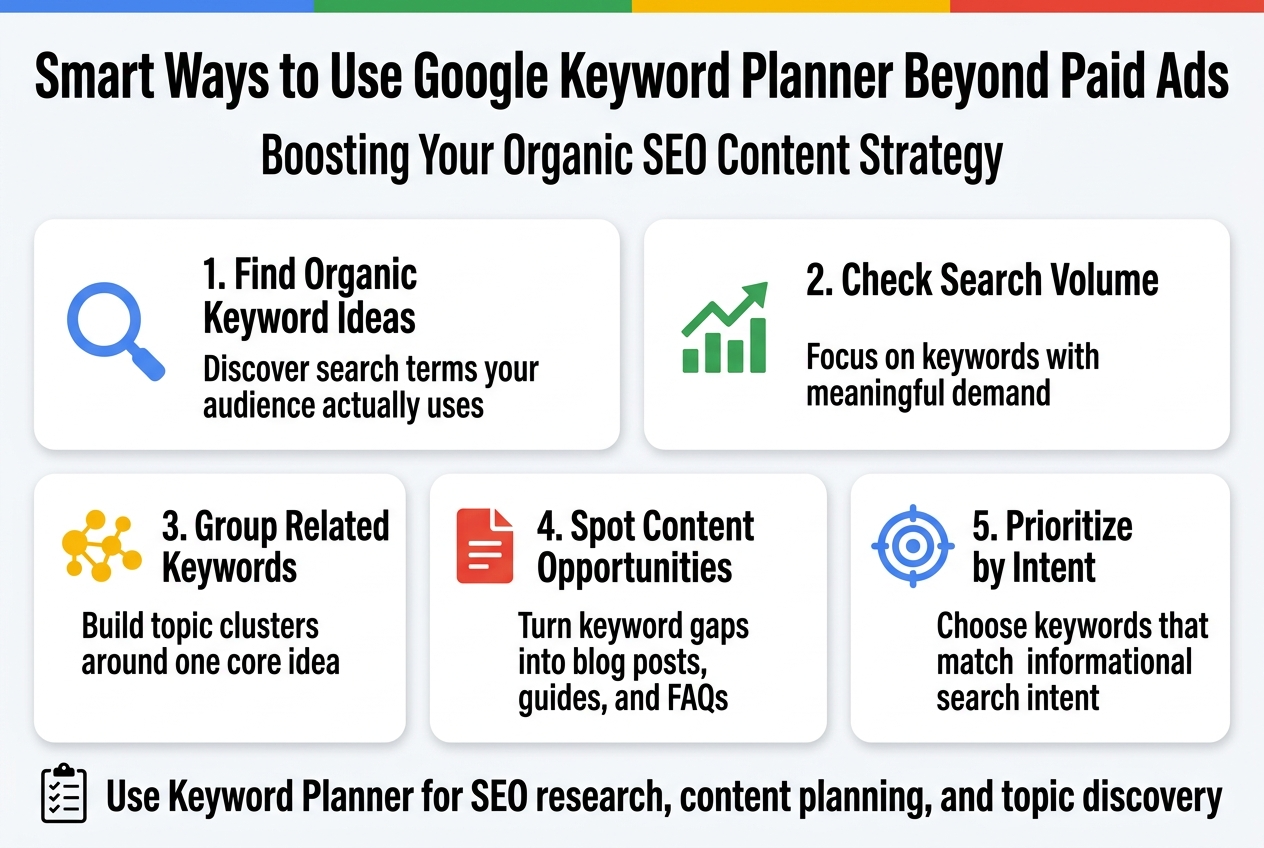
Boosting Your Organic SEO Content Strategy
Most people think Google Keyword Planner is strictly a paid ads tool, but that’s leaving a lot of value on the table. The data inside
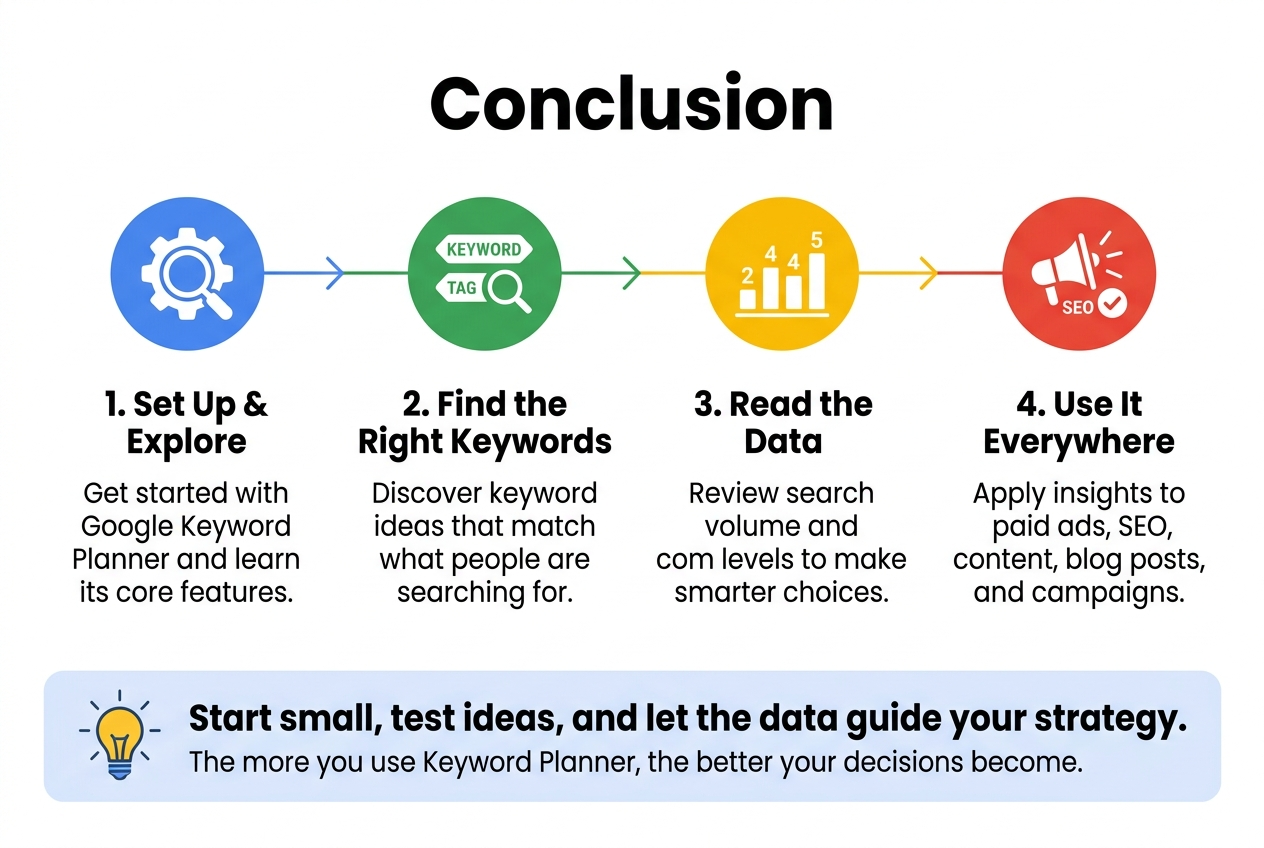
Google Keyword Planner is one of those tools that can genuinely change how you approach your content and advertising strategy. From setting it up and understanding its core features to finding the right keywords and making sense of the data, every step brings you closer to reaching the people who are actually searching for what you offer. And the best part? Its usefulness goes way beyond just running paid ads — it can shape your entire SEO and content game.
So if you haven’t already started playing around with it, now is a great time to dive in. Start small, explore the keyword ideas it throws at you, and pay attention to the search volumes and competition levels. The more you work with the data, the better your decisions will be — whether you’re writing a blog post, planning a campaign, or just trying to figure out what your audience actually cares about.

2 Responses