
WordPress SEO Plugins: What They Are and Which One You Actually Need
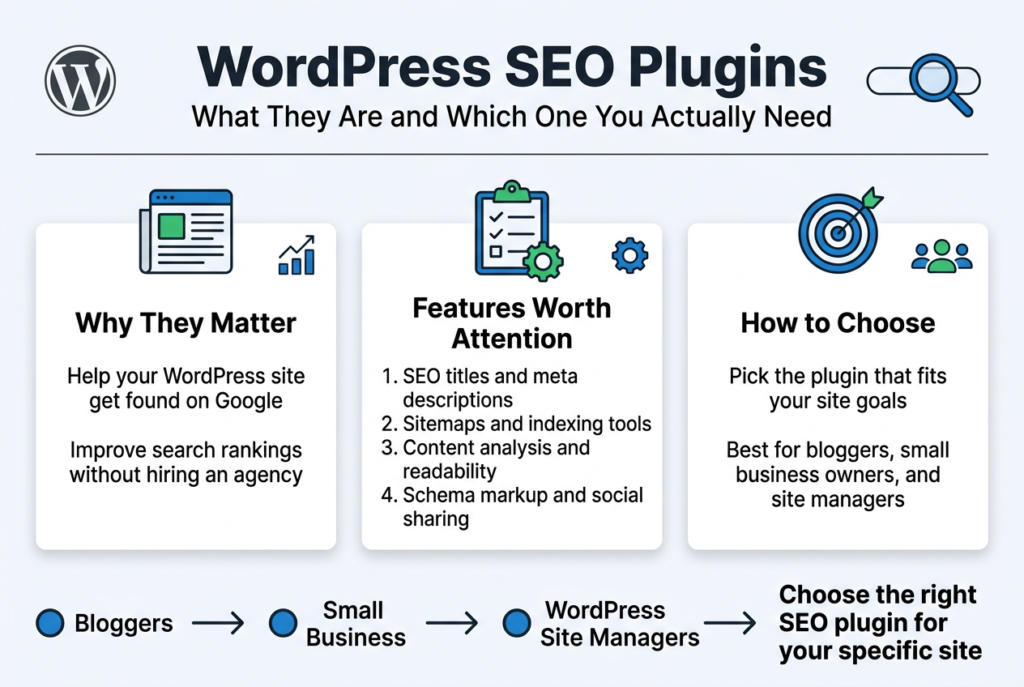
If you run a WordPress site and want more people to find it on Google, you’re in the right place. This guide is for bloggers, small business owners, and anyone managing a WordPress site who wants better search rankings without hiring an agency.
We’ll break down why WordPress SEO plugins matter, what features are actually worth your attention, and how to pick the right one for your specific site. No fluff — just what you need to make a smart choice.
Why WordPress SEO Plugins Are Essential for Your Website
The Impact of SEO Plugins on Search Engine Rankings
Getting your WordPress site to rank well on Google without any help is like trying to bake a cake without a recipe — technically possible, but unnecessarily hard and likely to go wrong. SEO plugins act as your built-in guide, making sure every page and post you publish is optimized before it ever goes live.
Here’s what SEO plugins actually do for your rankings:
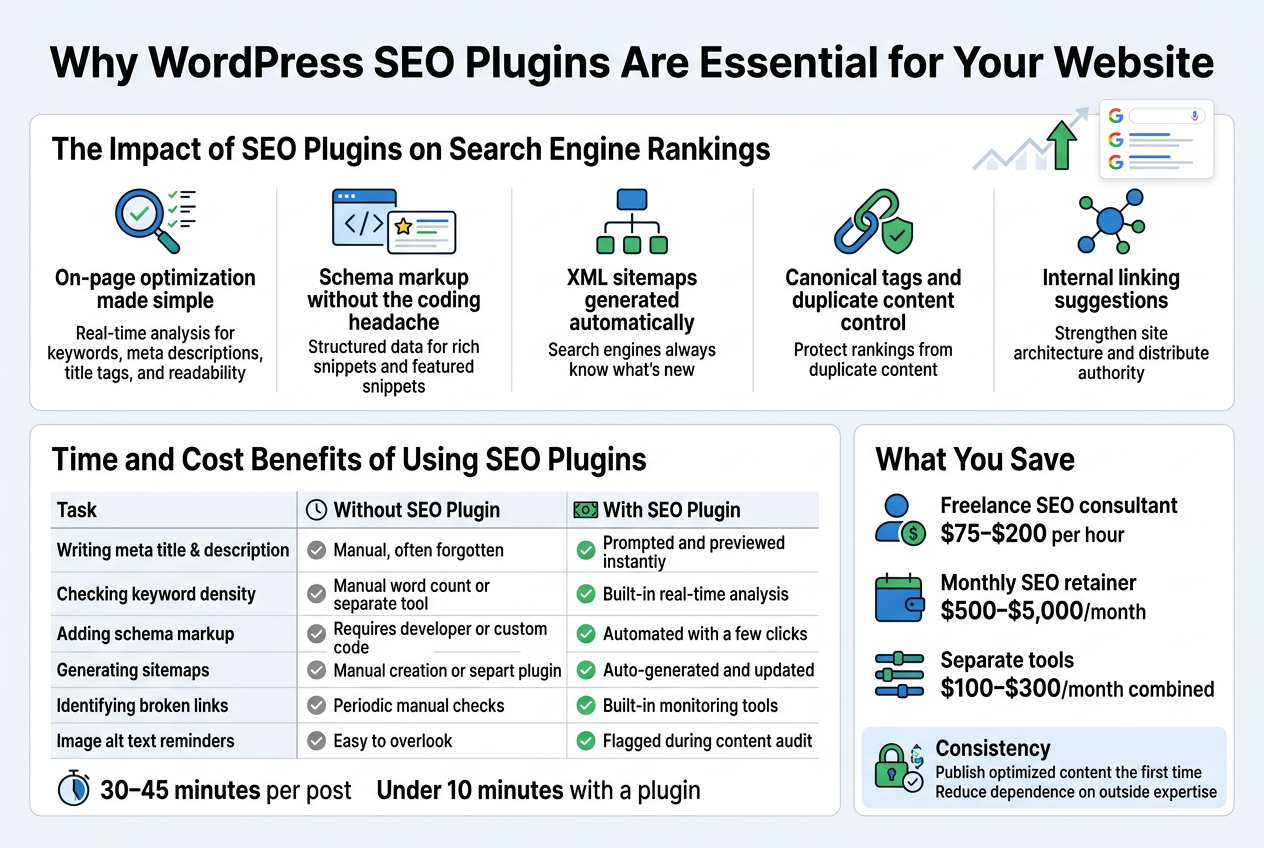
- On-page optimization made simple — Plugins like Yoast SEO and Rank Math analyze your content in real time, flagging issues with keyword placement, meta descriptions, title tags, and readability. You get instant feedback instead of finding out months later that something was off.
- Schema markup without the coding headache — Rich snippets in search results (star ratings, FAQs, product prices) can dramatically improve click-through rates. SEO plugins add structured data automatically, which helps search engines understand your content better and can push you into those attractive featured snippets.
- XML sitemaps generated automatically — Search engines need a roadmap to crawl your site efficiently. SEO plugins generate and update sitemaps every time you publish, so Google always knows what’s new.
- Canonical tags and duplicate content control — Duplicate content can quietly tank your rankings. SEO plugins handle canonical URLs without you needing to touch a single line of code.
- Internal linking suggestions — Several modern SEO plugins now suggest relevant internal links as you write, which strengthens your site architecture and distributes page authority more evenly.
The cumulative effect of these features is real. Sites that consistently publish properly optimized content — even in competitive niches — tend to climb rankings faster and hold their positions longer than those without a proper SEO setup.
Time and Cost Benefits of Using SEO Plugins
Hiring an SEO agency or a dedicated SEO specialist can cost anywhere from $500 to $5,000+ per month depending on your market and goals. For small businesses, bloggers, and growing e-commerce stores, that price tag isn’t always realistic. SEO plugins close a big chunk of that gap at a fraction of the cost.
What You Save on Time
Without an SEO plugin, here’s what a typical content publishing workflow might look like:
| Task | Without SEO Plugin | With SEO Plugin |
|---|---|---|
| Writing meta title & description | Manual, often forgotten | Prompted and previewed instantly |
| Checking keyword density | Manual word count or separate tool | Built-in real-time analysis |
| Adding schema markup | Requires developer or custom code | Automated with a few clicks |
| Generating sitemaps | Manual creation or separate plugin | Auto-generated and updated |
| Identifying broken links | Periodic manual checks | Built-in monitoring tools |
| Image alt text reminders | Easy to overlook | Flagged during content audit |
Those individual tasks might seem small, but across dozens or hundreds of posts, the time savings stack up fast. A plugin cuts your optimization time per post from potentially 30–45 minutes down to under 10 minutes once you know what you’re doing.
What You Save on Money
Most premium SEO plugins come in at roughly $50–$100 per year for a single site license. Compare that to:
- Freelance SEO consultant: $75–$200 per hour
- Monthly SEO retainer: $500–$5,000/month
- Separate tools for keyword analysis, schema markup, and sitemap generation: easily $100–$300/month combined
Even the most feature-rich SEO plugins like Rank Math Pro or Yoast SEO Premium give you a solid toolkit for well under $200 annually. You won’t replicate every service an agency offers, but for on-page optimization and technical basics, you’re covering a huge portion of the work yourself.
The Non-Obvious Savings
Beyond the obvious dollar and hour comparisons, there’s a less talked-about benefit — consistency. When optimization is baked into your publishing workflow through a plugin, you stop publishing half-optimized content and then scrambling to fix it later. Fixing SEO issues retroactively takes significantly more time than getting it right the first time.
A plugin also reduces your dependency on outside expertise for routine tasks. Your writers and content managers can handle basic SEO hygiene without needing to loop in a developer or specialist every time a page goes live. That kind of operational independence is genuinely valuable as your site scales.
Key Features to Look for in a WordPress SEO Plugin
On-Page SEO Analysis and Recommendations
On-page SEO is where the rubber meets the road. A good WordPress SEO plugin should act like a knowledgeable co-pilot — constantly scanning your content and telling you exactly what needs fixing before you hit publish.
Here’s what solid on-page analysis actually looks like in practice:
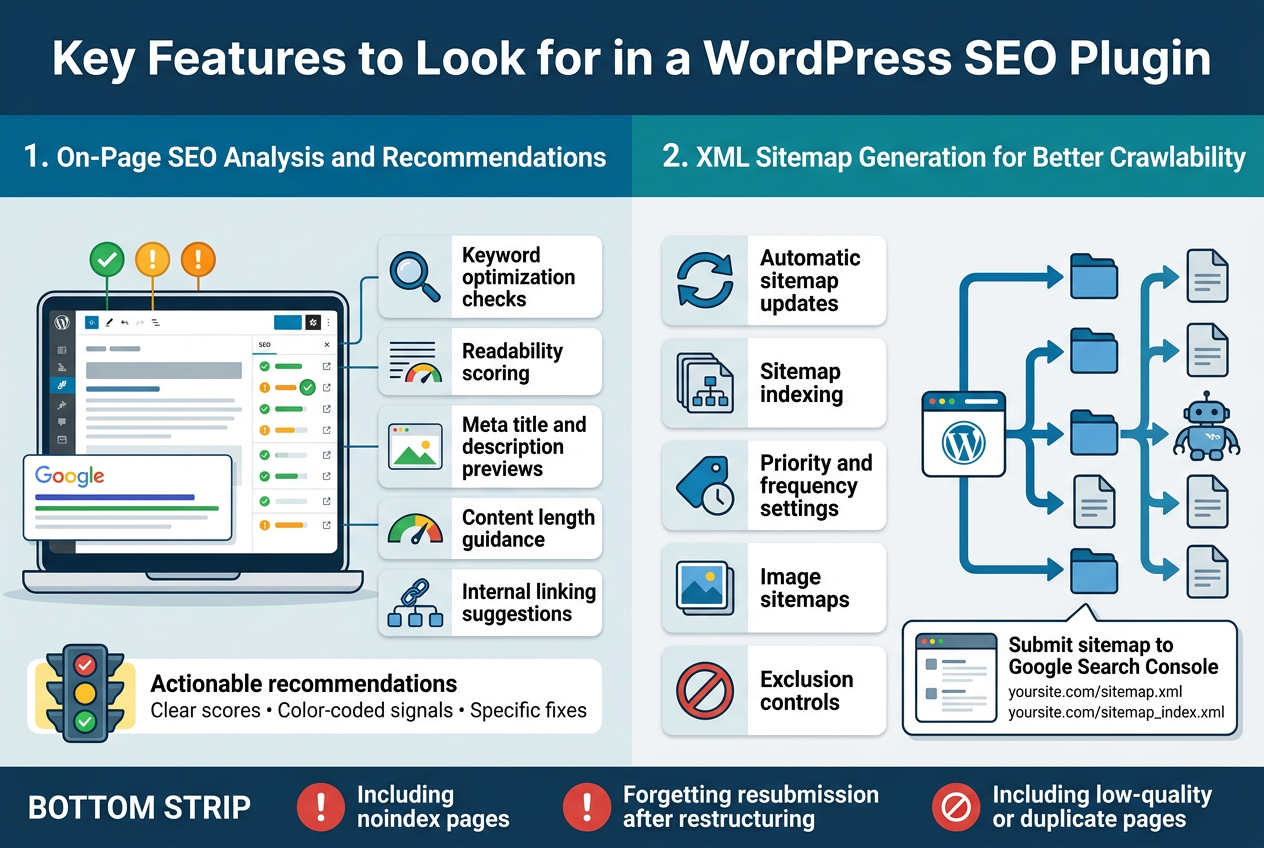
- Keyword optimization checks — The plugin should tell you if your target keyword appears in the right places: your title tag, meta description, first paragraph, headings, and image alt text. Not just whether it’s there, but whether you’ve overused it (keyword stuffing is very much still a thing).
- Readability scoring — Tools like Yoast SEO break down how easy your content is to read using metrics like sentence length, passive voice usage, and paragraph structure. Google cares about user experience, and so should you.
- Meta title and description previews — You want to see exactly how your page will look in search results before it goes live. A good plugin gives you a real-time snippet preview so nothing gets cut off awkwardly.
- Content length guidance — Some plugins flag when your content might be too thin to rank competitively for a given topic.
- Internal linking suggestions — Linking to your own relevant content helps search engines understand your site structure. A plugin that highlights opportunities for internal links saves you a lot of manual digging.
What Makes a Great On-Page Tool Stand Out
The difference between a mediocre and a great on-page SEO tool comes down to actionability. Vague advice like “improve your content” is useless. The best plugins give you color-coded traffic lights or specific scores with clear explanations of what’s wrong and how to fix it. Rank Math, for example, breaks its recommendations into individual checklist items so you can tick them off one by one. That kind of specificity is what makes the difference between guessing and knowing.
XML Sitemap Generation for Better Crawlability
If on-page SEO is about making your content great for humans, XML sitemaps are about making your site easy for search engine bots to navigate. Think of a sitemap as a GPS for Google’s crawlers — it tells them exactly where all your important pages are so nothing gets missed.
Why XML Sitemaps Matter
Search engines crawl the web by following links. But what happens when a page is buried deep in your site with few internal links pointing to it? Without a sitemap, there’s a real chance that page never gets indexed — which means it never shows up in search results. A well-structured XML sitemap solves that problem by handing Google a complete list of your URLs.
Here’s what a good sitemap feature inside a WordPress SEO plugin should handle:
| Feature | Why It Matters |
|---|---|
| Automatic sitemap updates | Every time you publish or update a page, the sitemap should refresh on its own without you lifting a finger |
| Sitemap indexing | For large sites, the plugin should split your sitemap into multiple files organized by content type (posts, pages, categories, images) |
| Priority and frequency settings | You can signal to search engines how often pages change and how important they are relative to each other |
| Image sitemaps | Images can rank in Google Image Search too, so including them in your sitemap is a smart move |
| Exclusion controls | You should be able to leave out pages you don’t want indexed — like thank-you pages, login pages, or admin areas |
How to Submit Your Sitemap to Google
Generating the sitemap is just step one. You also need to submit it to Google Search Console so Google knows it exists. Most SEO plugins automatically generate a sitemap URL that looks something like yoursite.com/sitemap.xml or yoursite.com/sitemap_index.xml. You copy that URL, paste it into the Sitemaps section of Google Search Console, and hit submit. Done. From there, Google will begin crawling your site more efficiently.
Common Sitemap Mistakes to Avoid
- Including pages with
noindextags in your sitemap — this sends mixed signals to Google - Forgetting to update your sitemap submission after major site restructuring
- Including low-quality or duplicate content pages that you don’t actually want ranking
- Ignoring sitemap errors flagged in Google Search Console
A WordPress SEO plugin that handles sitemap generation automatically takes a surprisingly technical task and makes it completely hands-off. That’s exactly the kind of time-saving functionality that justifies installing one in the first place.
Top WordPress SEO Plugins to Boost Your Rankings
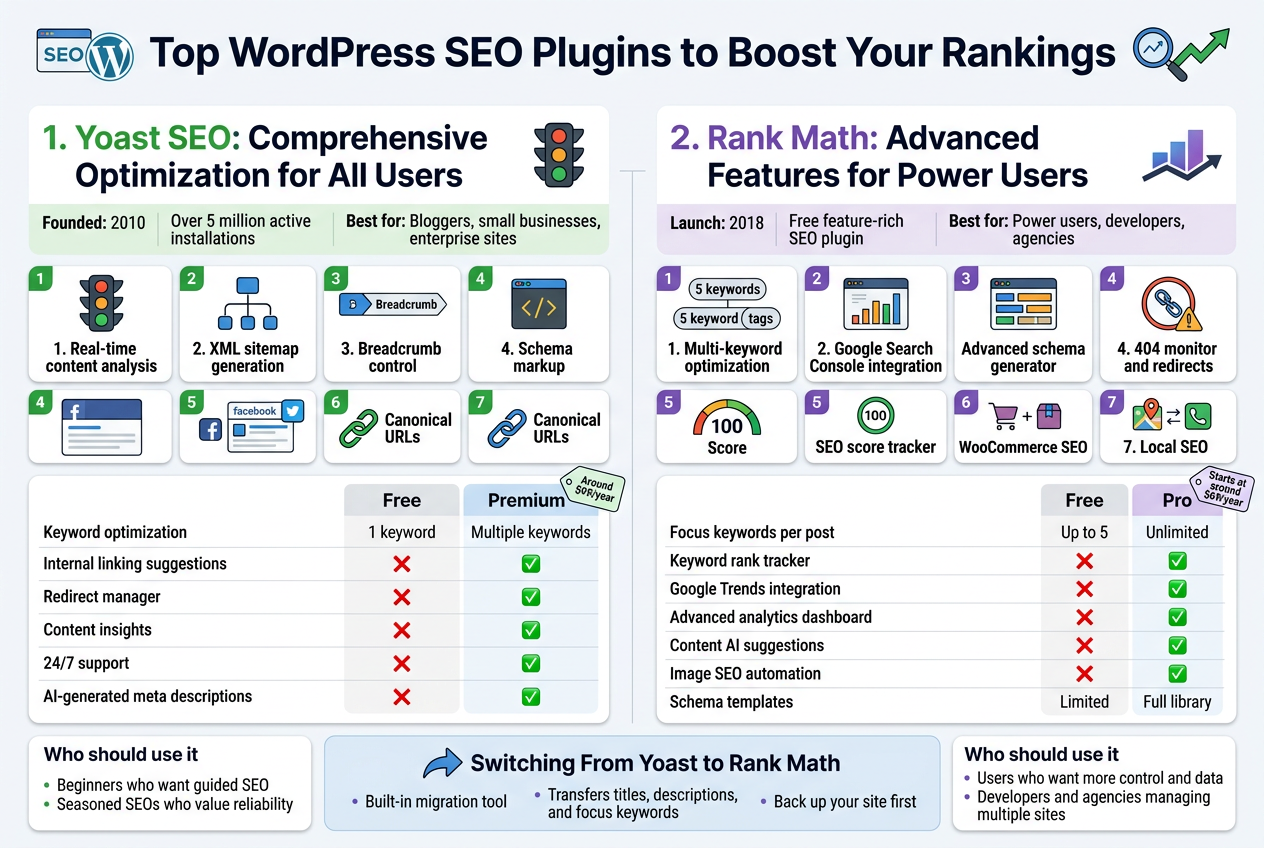
Yoast SEO: Comprehensive Optimization for All Users
Yoast SEO has been around since 2010, and there’s a good reason why it’s still one of the most downloaded WordPress plugins ever. With over 5 million active installations, it has earned its reputation as the go-to tool for bloggers, small business owners, and enterprise-level websites alike.
What Makes Yoast SEO Stand Out
The plugin covers pretty much every base you’d want when it comes to on-page optimization. Here’s what you get:
- Real-time content analysis – As you write your post or page, Yoast checks your keyword density, readability, internal linking, and meta descriptions on the fly. You get a green, orange, or red indicator that tells you exactly how your content is performing before you hit publish.
- XML sitemap generation – It automatically creates and updates your sitemap, making it easier for Google to crawl and index your pages.
- Breadcrumb control – You can manage your site’s breadcrumb navigation directly through the plugin settings.
- Schema markup – Yoast adds structured data to your pages automatically, helping search engines understand your content better and improving your chances of landing rich results.
- Social media previews – You can customize how your content looks when shared on Facebook and Twitter.
- Canonical URLs – It handles canonical tags to prevent duplicate content issues without you having to touch a single line of code.
Yoast SEO Free vs. Premium
| Feature | Free | Premium |
|---|---|---|
| Keyword optimization | 1 keyword | Multiple keywords |
| Internal linking suggestions | ❌ | ✅ |
| Redirect manager | ❌ | ✅ |
| Content insights | ❌ | ✅ |
| 24/7 support | ❌ | ✅ |
| AI-generated meta descriptions | ❌ | ✅ |
The free version is genuinely useful and works well for most beginners. If you’re running a content-heavy site or an online store, upgrading to Premium at around $99/year opens up features that can save you a significant amount of time and effort.
Who Should Use Yoast SEO
Yoast is perfect if you’re just getting started with SEO and want a clear, guided experience. The traffic light system and the step-by-step feedback make it easy to understand what needs fixing without needing a technical background. Even seasoned SEOs appreciate its reliability and the consistent updates the team pushes out to stay aligned with Google’s changing algorithm.
Rank Math: Advanced Features for Power Users
Rank Math burst onto the scene in 2018 and quickly shook up the WordPress SEO plugin market. It came in offering a feature set that would normally cost you money elsewhere — all for free. That bold move earned it millions of users fast, and it continues to grow at a rapid pace.
Why Rank Math Gets So Much Attention
The plugin is built with power users in mind, but it’s designed in a way that doesn’t intimidate beginners either. The setup wizard walks you through configuration step by step, importing settings from other plugins like Yoast if you’re switching over.
Here’s what Rank Math brings to the table:
- Multi-keyword optimization – Even in the free version, you can optimize a single post for up to five focus keywords. That alone sets it apart from most competitors.
- Google Search Console integration – Rank Math pulls your GSC data directly into your WordPress dashboard, so you can see impressions, clicks, and keyword rankings without switching tabs.
- Advanced schema generator – The schema builder in Rank Math is one of the most detailed available. You can add structured data for articles, recipes, events, products, FAQs, how-tos, and more — all through a visual interface.
- 404 monitor and redirects – The built-in 404 monitor tracks broken links on your site, and you can set up redirects right inside the plugin.
- SEO score tracker – Every post gets an SEO score out of 100, giving you a quick snapshot of where improvements can be made.
- WooCommerce SEO – Rank Math includes built-in WooCommerce optimization, covering product pages, product categories, and breadcrumbs.
- Local SEO – Adding your business name, address, phone number, and map details is straightforward through Rank Math’s local SEO module.
Rank Math Free vs. Pro
| Feature | Free | Pro |
|---|---|---|
| Focus keywords per post | Up to 5 | Unlimited |
| Keyword rank tracker | ❌ | ✅ |
| Google Trends integration | ❌ | ✅ |
| Advanced analytics dashboard | ❌ | ✅ |
| Content AI suggestions | ❌ | ✅ |
| Image SEO automation | ❌ | ✅ |
| Schema templates | Limited | Full library |
The Pro plan starts at around $69/year, which is competitive pricing for what you get. For agencies managing multiple client sites, the Agency plan offers unlimited site licenses, making it a seriously cost-effective option.
Who Should Use Rank Math
Rank Math is a natural fit for anyone who wants more control and data at their fingertips. If you’re the kind of person who likes digging into analytics, tweaking schema markup, or managing redirects from one central place, Rank Math delivers that without making you jump through hoops. It’s also a smart pick for developers and agencies who want one plugin that handles the heavy lifting across dozens of different websites.
Switching From Yoast to Rank Math
If you’re already using Yoast and considering a switch, Rank Math has a built-in migration tool that transfers all your existing SEO metadata — including titles, descriptions, and focus keywords — so you don’t lose your work. The process is straightforward and takes only a few minutes. Just make sure to back up your site first before making any major plugin changes.
Best Practices for Getting the Most Out of Your SEO Plugin
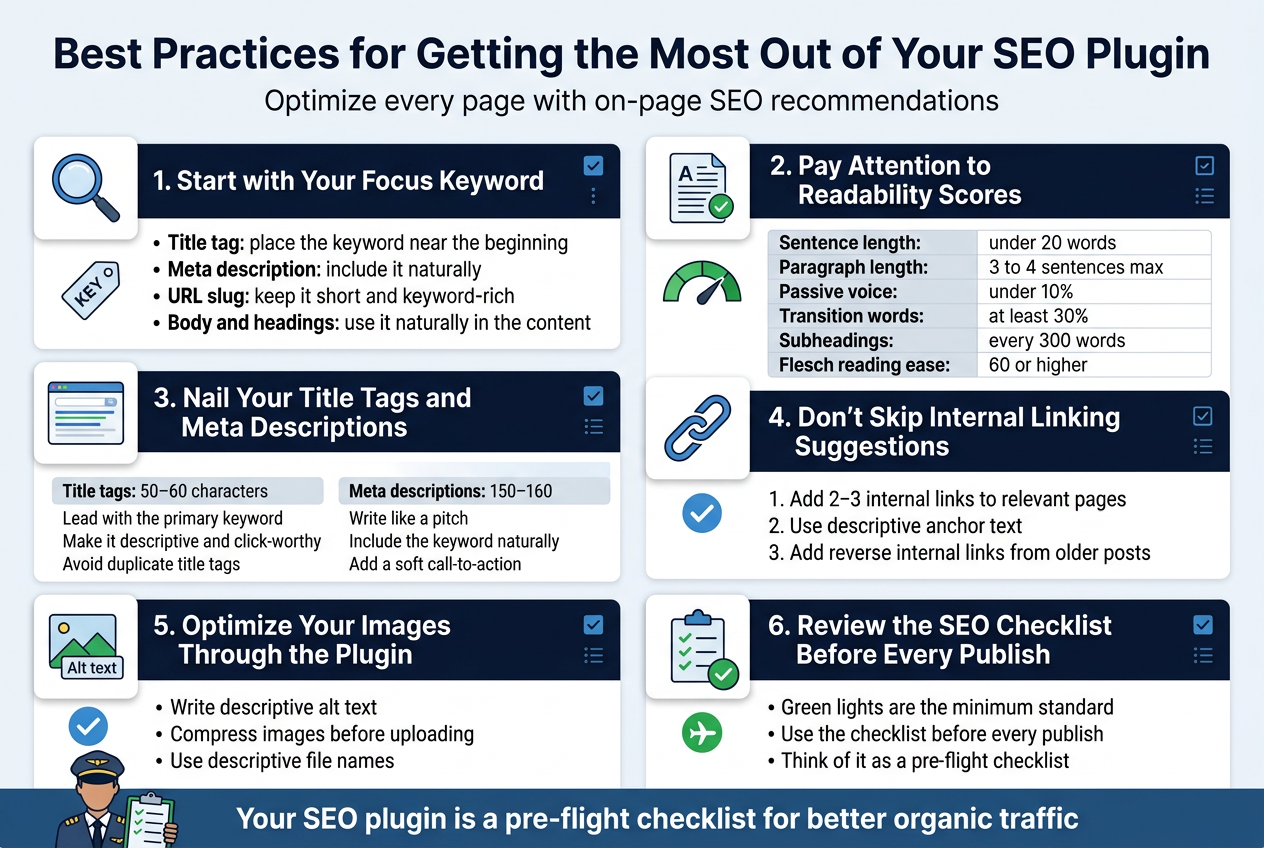
Optimize Every Page with On-Page SEO Recommendations
Your SEO plugin is only as powerful as how consistently you apply its suggestions. Most WordPress SEO plugins — whether it’s Yoast, Rank Math, or All in One SEO — come packed with real-time on-page analysis tools. These tools flag issues and give you actionable recommendations right inside the post editor. Taking these suggestions seriously on every single page you publish is one of the most straightforward ways to build long-term organic traffic.
Start with Your Focus Keyword
Every page or post should target a specific keyword or phrase. Your plugin will prompt you to enter a focus keyword, and once you do, it analyzes how well your content is optimized around it. Here’s what you should be checking:
- Keyword in the title tag – Your focus keyword should appear near the beginning of your SEO title, not buried at the end.
- Keyword in the meta description – Write a compelling meta description that naturally includes your target keyword. This doesn’t directly impact rankings, but it does improve click-through rates.
- Keyword in the URL slug – Keep it short, clean, and keyword-rich. Avoid using dates or unnecessary words in the slug.
- Keyword density in the body – You don’t need to stuff keywords everywhere, but your focus keyword should appear naturally throughout the content, especially in the first paragraph.
- Keyword in headings – Use your keyword or a close variation in at least one H2 or H3 heading within the post.
Pay Attention to Readability Scores
Most SEO plugins don’t just analyze keyword usage — they also score how readable your content is. Don’t brush this off. Google cares about user experience, and content that’s easy to read keeps people on the page longer.
Here’s a quick breakdown of readability factors your plugin will typically evaluate:
| Readability Factor | What to Aim For |
|---|---|
| Sentence length | Keep most sentences under 20 words |
| Paragraph length | Short paragraphs — 3 to 4 sentences max |
| Passive voice usage | Keep it under 10% of your sentences |
| Transition words | Use them in at least 30% of your sentences |
| Subheadings | Break up longer content every 300 words |
| Flesch reading ease | Aim for a score of 60 or higher |
These aren’t arbitrary rules. They reflect how real people actually consume content online — quickly, on mobile devices, usually while multitasking.
Nail Your Title Tags and Meta Descriptions
Your plugin gives you a preview of how your page will look in search results. Use it. A lot of people skip this step and let their plugin auto-generate the title and description, which often leads to truncated, awkward-looking snippets.
For title tags:
- Keep them between 50–60 characters
- Lead with the primary keyword when possible
- Make it descriptive and click-worthy — treat it like a mini headline
- Avoid duplicate title tags across pages
For meta descriptions:
- Stay within 150–160 characters
- Write it like a pitch — what’s in it for the reader?
- Include your keyword naturally, not forcefully
- Add a soft call-to-action like “learn how,” “find out,” or “see why”
Don’t Skip Internal Linking Suggestions
Some plugins like Rank Math and Link Whisper actively suggest internal links based on the content you’re writing. This is a goldmine. Internal linking helps search engines crawl your site more effectively and distributes page authority across your content.
Every time you publish a new post:
- Add at least 2–3 internal links pointing to other relevant pages on your site
- Use descriptive anchor text that gives context about the linked page
- Go back to older posts and add links pointing to your new content — this is called reverse internal linking and most people forget to do it
Optimize Your Images Through the Plugin
On-page SEO isn’t just about text. Images play a role too. Your SEO plugin will often flag missing alt text, which is both an accessibility issue and an SEO miss.
When optimizing images:
- Write descriptive alt text that includes your keyword where it fits naturally
- Compress images before uploading (plugins like Smush or ShortPixel handle this separately, but some all-in-one SEO plugins include this)
- Use descriptive file names instead of generic ones like “IMG_4523.jpg” — something like “best-wordpress-seo-plugins.jpg” is far better
Review the SEO Checklist Before Every Publish
Make it a habit to run through your plugin’s SEO checklist before hitting publish. Treat the green lights as a minimum standard, not a guarantee of success. Even a fully green score doesn’t mean your content will rank — it means you’ve done the basic technical and on-page work correctly.
Think of it this way: your SEO plugin is like a pre-flight checklist for a pilot. No pilot skips it, even when they’ve flown the same route hundreds of times. The checklist doesn’t fly the plane, but it makes sure nothing obvious goes wrong before takeoff.
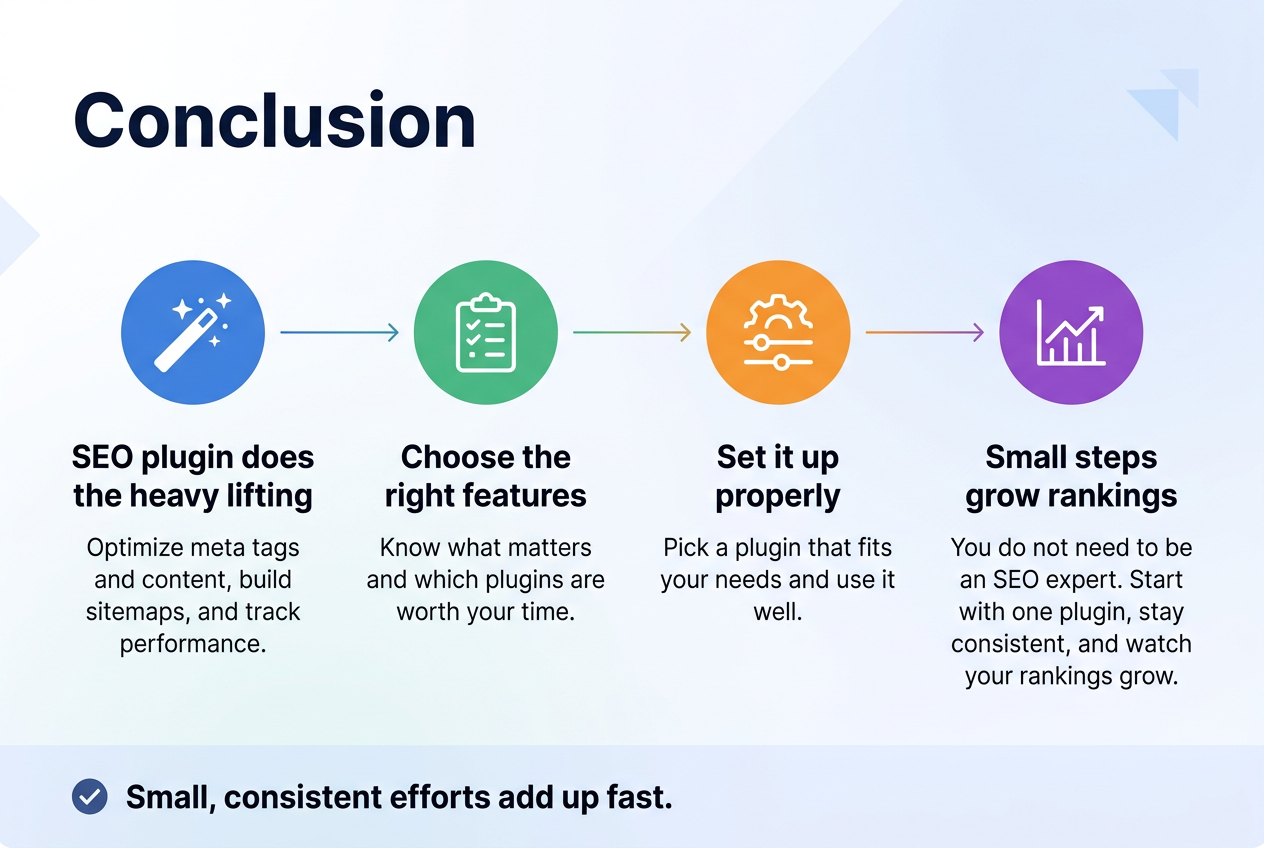
Getting your WordPress site to rank well doesn’t have to feel overwhelming. The right SEO plugin can handle a lot of the heavy lifting — from optimizing your meta tags and content to building sitemaps and tracking your performance. Knowing what features matter, which plugins are worth your time, and how to actually use them well makes a real difference in how your site shows up in search results.
The good news is that you don’t need to be an SEO expert to make these tools work for you. Pick a plugin that fits your needs, take the time to set it up properly, and follow the best practices that actually move the needle. Small, consistent efforts add up fast. Start with one plugin, get comfortable with it, and watch your rankings grow from there.
